Your wrist can keep the score.
Big run totals. Tap a score to add a run. Top and bottom innings. Your paired Apple Watch gives you a way to score while your phone stays where it belongs.
 SCORE MONKEYSTREAM IT. SCORE IT.
BUILT FOR SOFTBALL. MADE FOR THE SIDELINE.
Stream to YouTube. Keep score from your phone, iPad or Apple Watch. See the camera, adjust the shot, manage the microphone and stay aware of trouble—all without making every play a trip back to the tripod.
Currently in limited TestFlight beta · iPhone, iPad & paired Apple Watch
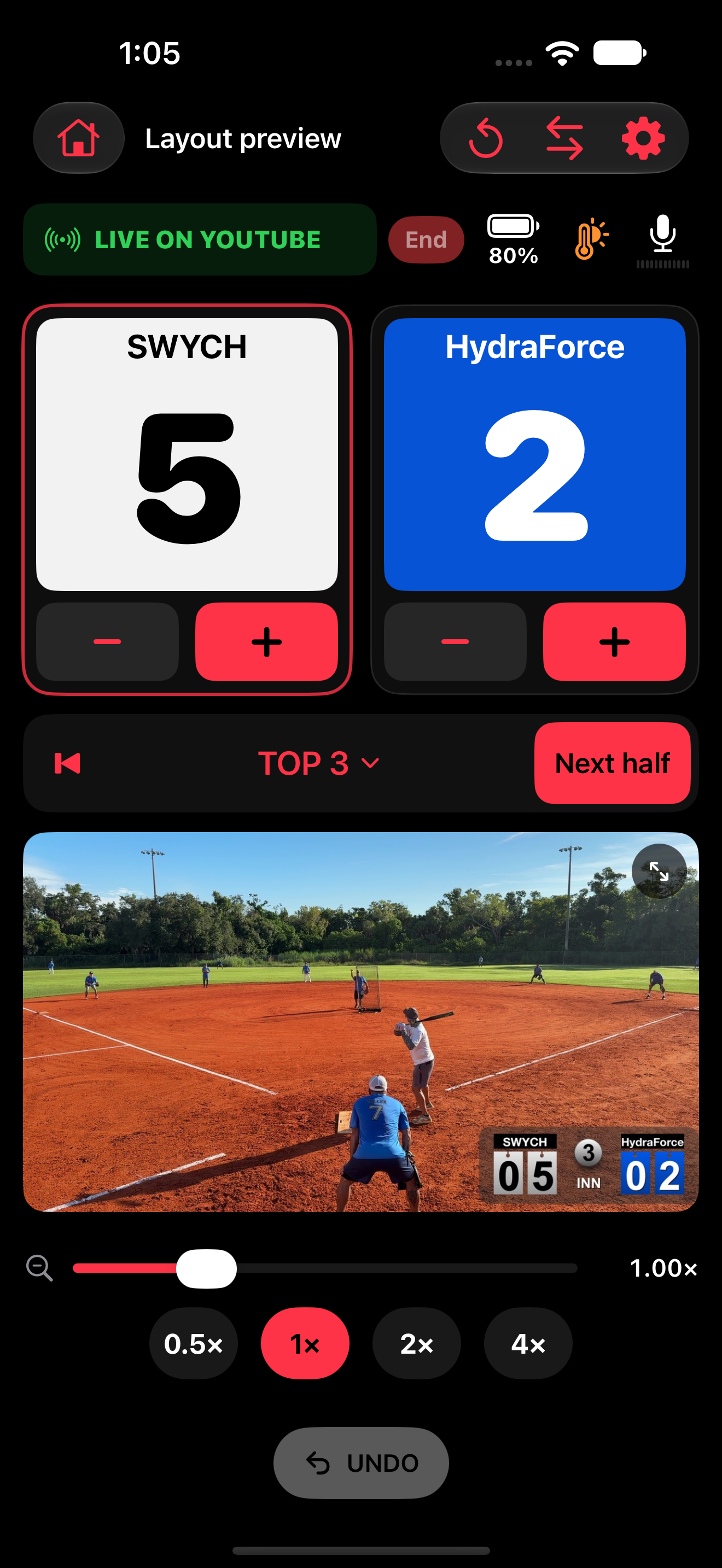
MORE THAN A SCORE ON A VIDEO.
Big run totals. Tap a score to add a run. Top and bottom innings. Your paired Apple Watch gives you a way to score while your phone stays where it belongs.
See the mounted camera’s picture right on the scoring screen. Keep your score controls, battery, microphone and zoom in view, with optional full-screen landscape expansion.
Start and stop the YouTube livestream from the remote app while the camera stays mounted on the field. Prepare the game, edit its details and thumbnail, then Go Live—or confirm End—without walking back to the camera.
Battery percentage, heat indicators, weak-stream guidance and camera-pause alerts make the mounted phone less of a mystery.
Track just runs and innings, or turn on counts and bases. Correct an inning, undo a tap, or swap teams without starting over.
A clear box score, replay link when available, honest recording status and one place to share the final result.
SEE THE CAMERA APP.
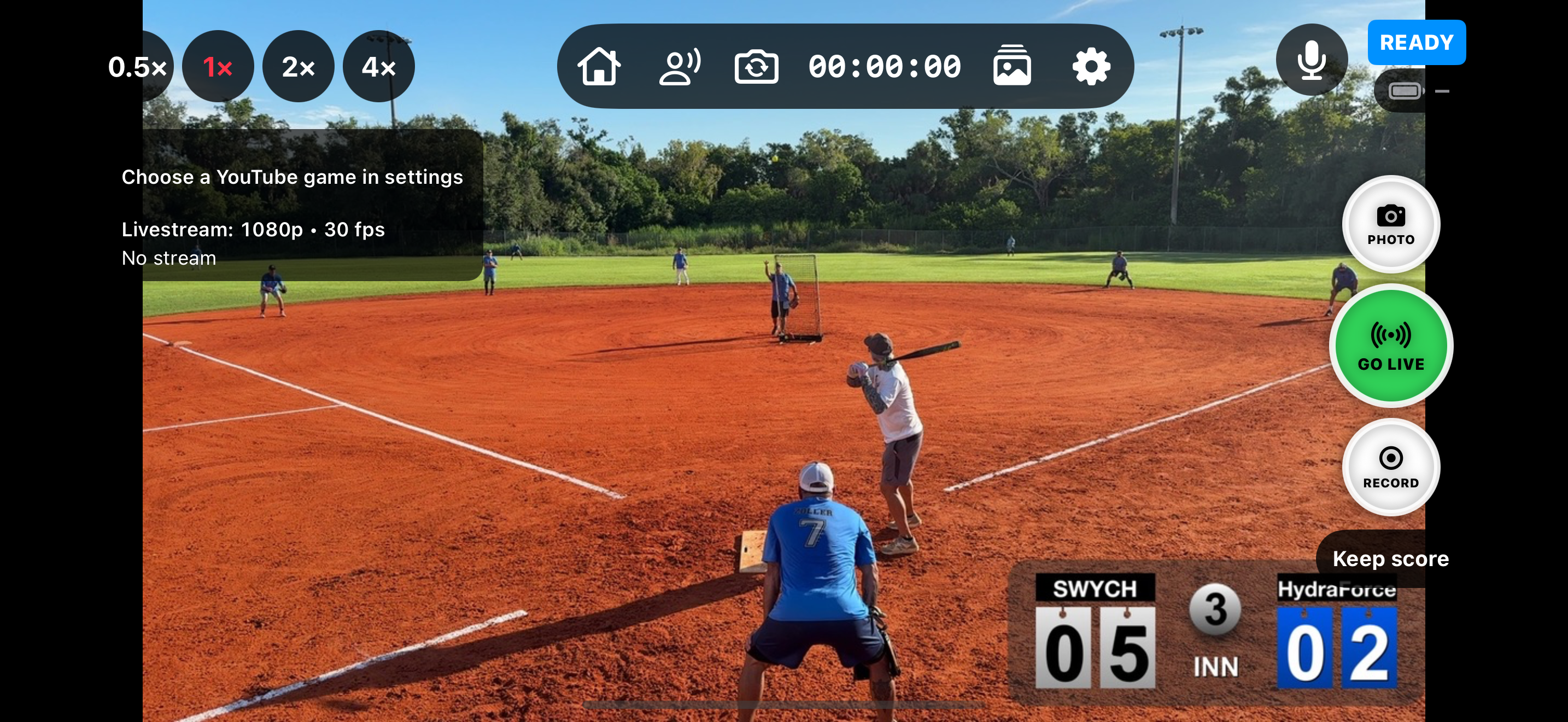
Keep the picture in view, change your shot, take a photo, record locally or prepare a YouTube broadcast. The gear opens clear settings when you need them.
Tap any screenshot to see it larger. Screens shown are real beta interfaces captured in simulators; game data and microphone readings are examples.
 View larger ↗
Actual camera interface in a simulator, using the supplied softball photo. Ready state shown; no broadcast is running.
 View larger ↗
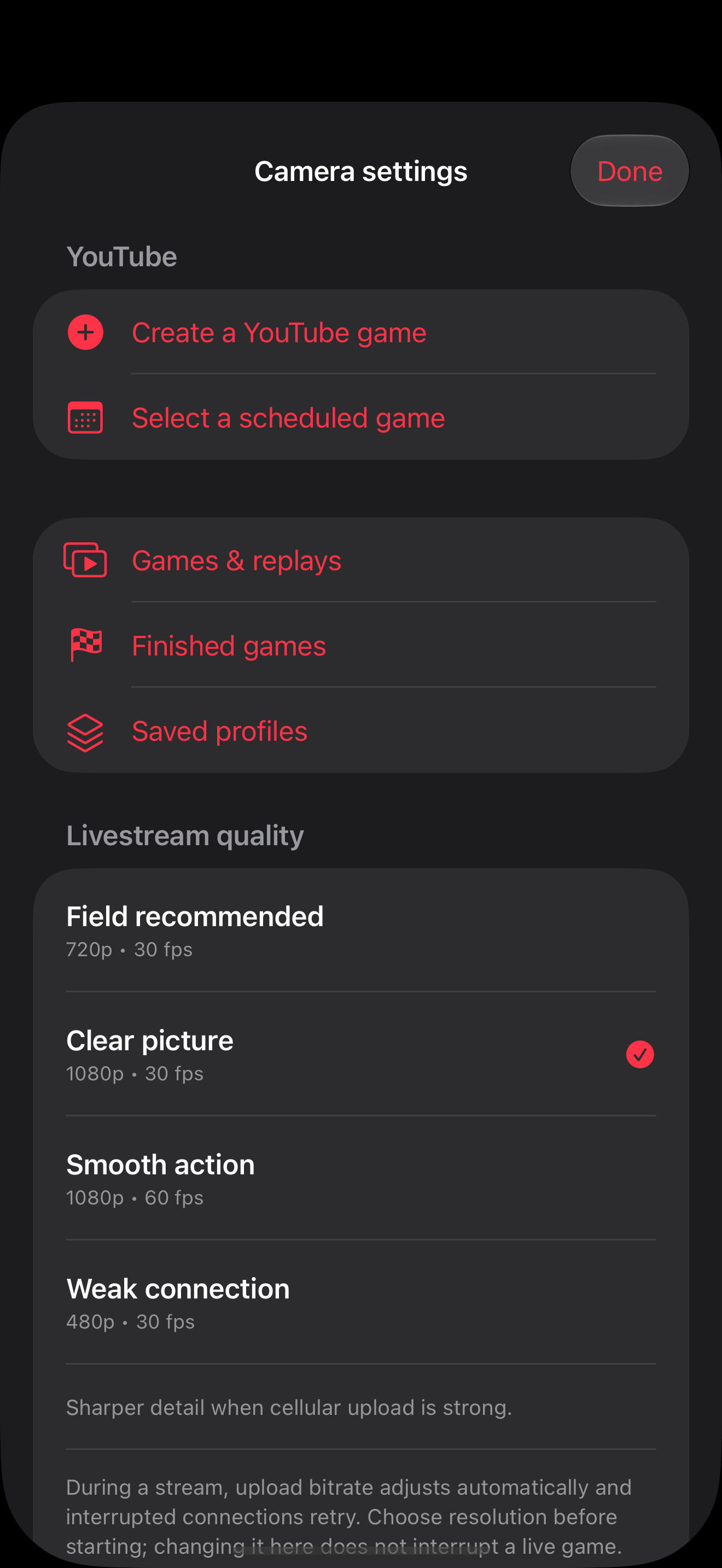
Go straight to a new or scheduled game, then choose a quality preset for field conditions. Actual app screen; the page continues below.
 View larger ↗
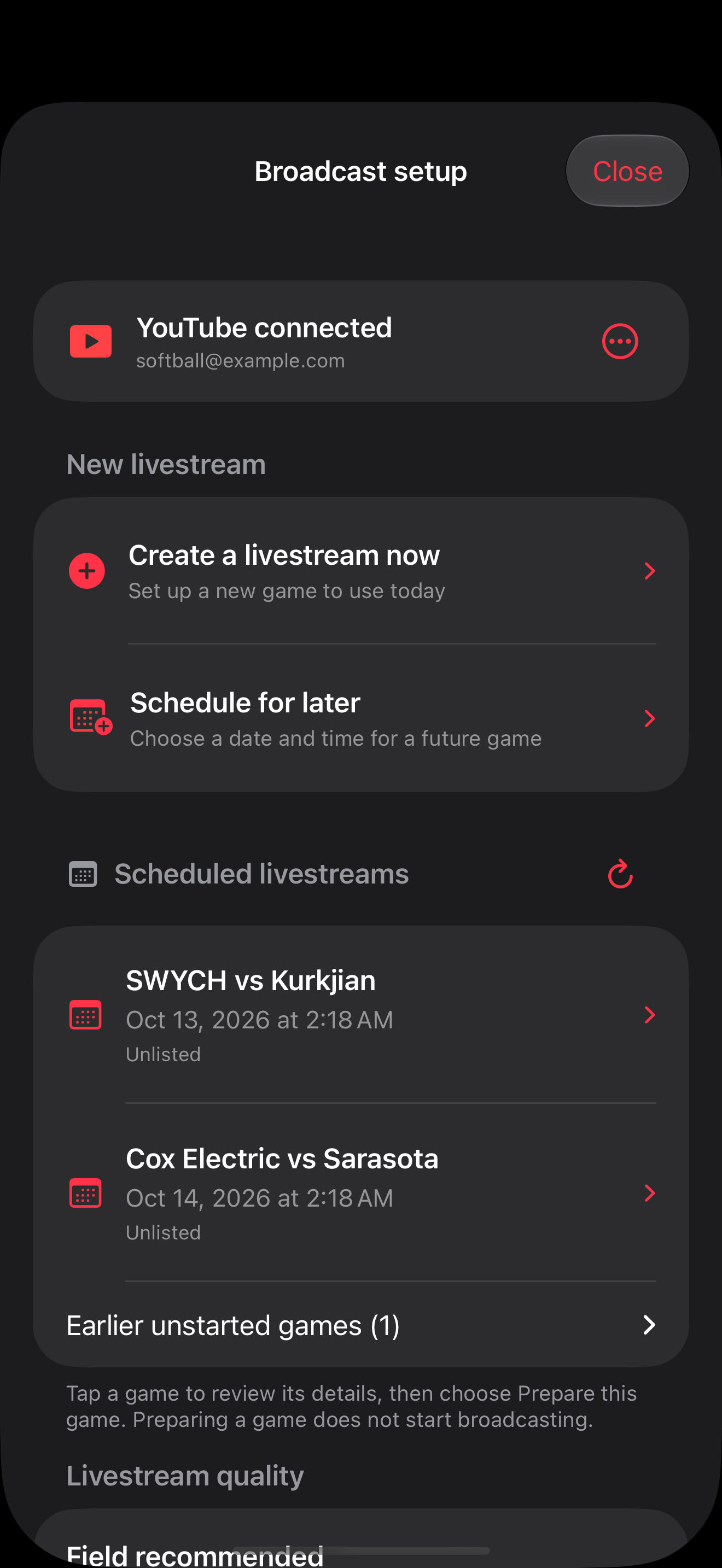
Actual broadcast setup interface, with a sample account and scheduled games. Preparing a game is separate from going live.
SMALL DEVICE. BIG GAME-DAY JOB.
Not every scorekeeper wants a full scorebook. Our Watch workflow is built around the things a softball game needs most: runs, innings and a quick correction.
Apple Watch requires its paired iPhone and a working connection. Cellular service on the Watch does not create an independent Score Monkey connection.
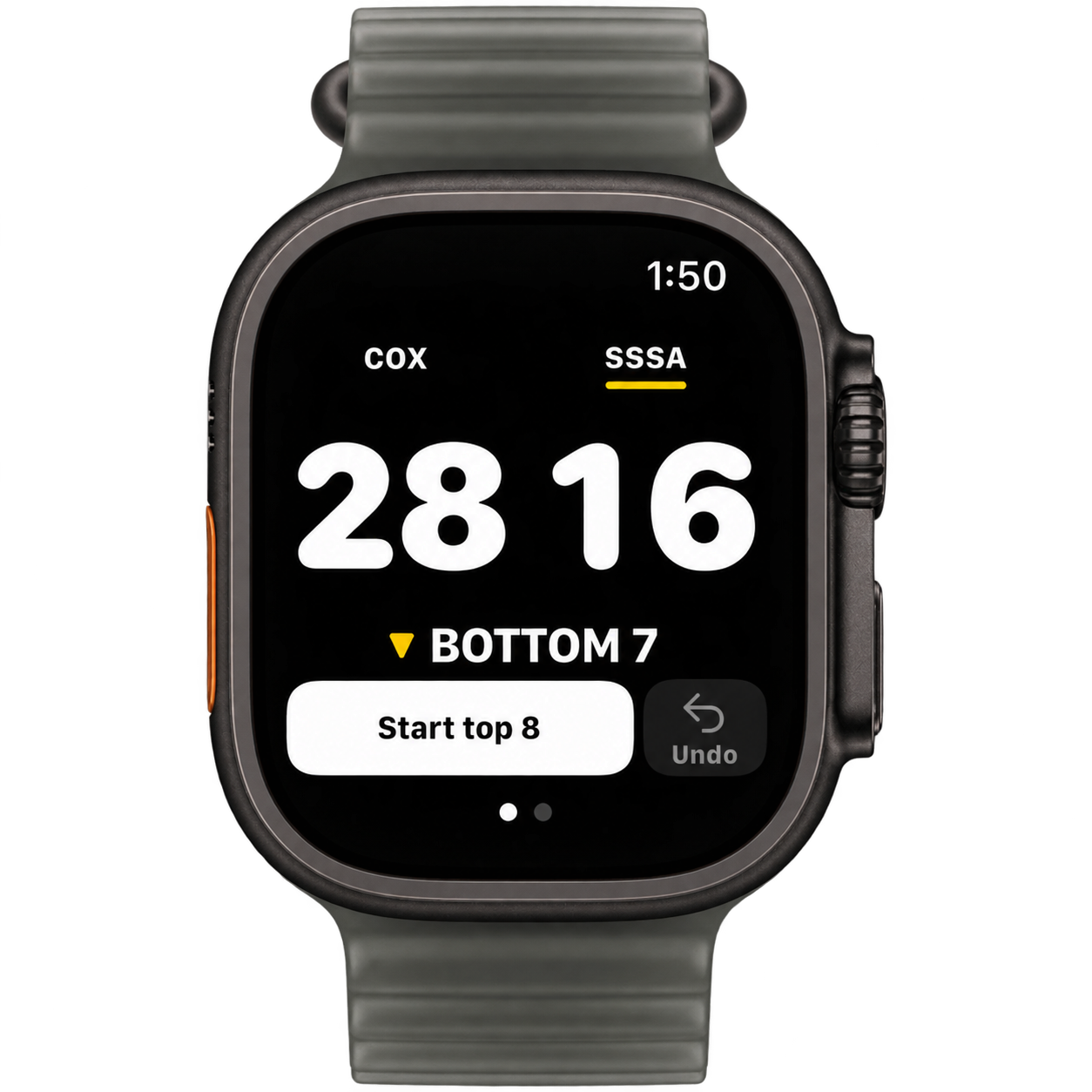
Score Monkey Watch interface placed in the supplied Apple Watch Ultra image. Tap either team’s score to add a run; Undo reverses an extra tap. The Watch communicates through its paired iPhone.
THE TRIPOD CAN STAY ON THE FIELD.
Your scorekeeper can do more than change a number. Keep the game, the camera and the broadcast in view from one device.
Create & schedule • edit title & description • select a game • thumbnail editor • latency • Go Live • confirmed End
In-screen camera preview while scoring • landscape expansion • precise zoom slider from either phone • exact supported zoom values • four custom zoom presets • scoreboard placement, size & transparency
Mic on/off • level meter • active input • quiet/clipping indicators • supported microphone selection & gain
Runs & innings • optional full scoring • corrections • Undo • saved teams • swap/reset • profiles • finished records
GREAT VIDEO DESERVES GREAT SOUND.
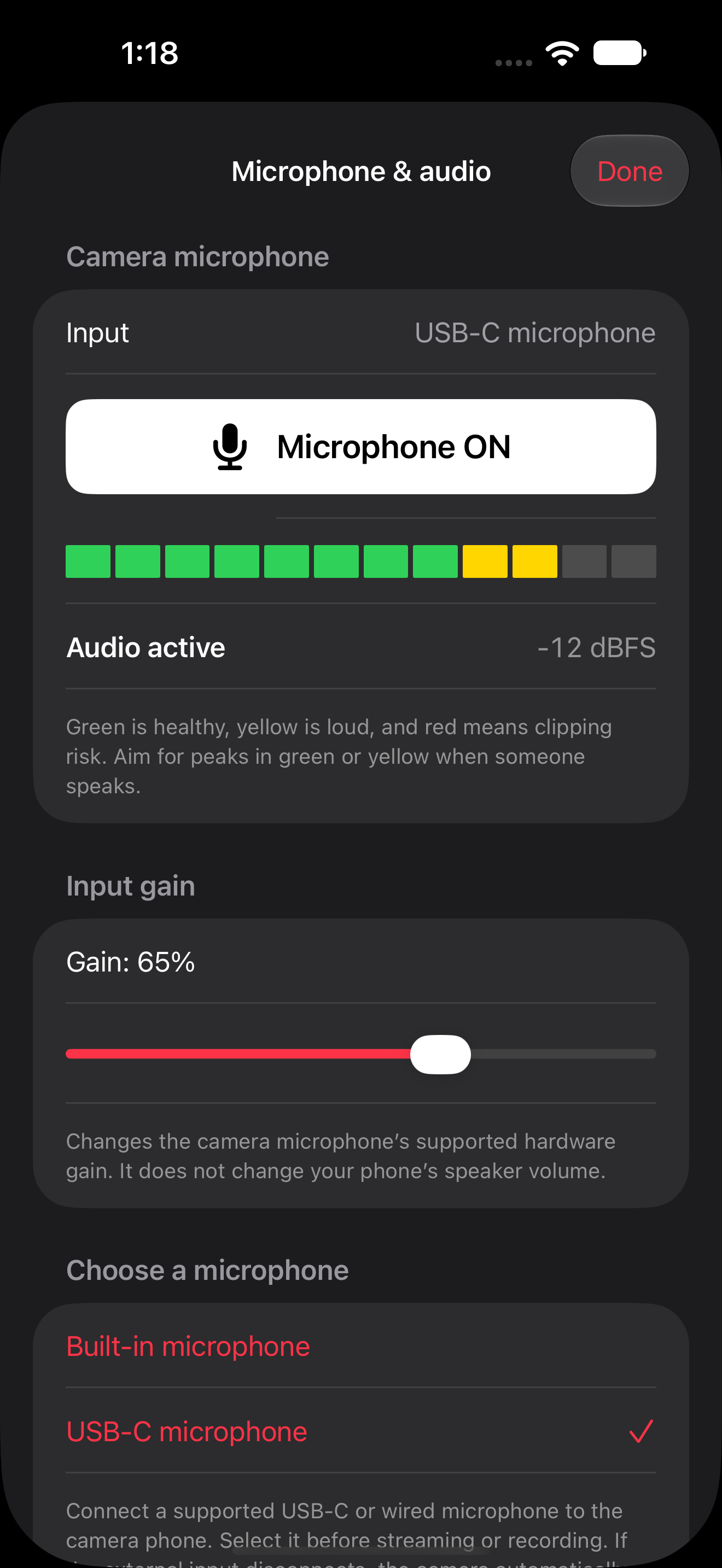
Choose a compatible external microphone or the phone’s built-in mic. Watch the camera’s audio levels and control supported input gain from the remote—without listening to a delayed stream.
Input choices and gain adjustment depend on iOS and the connected microphone. The level meter measures camera input; it does not confirm what viewers hear on YouTube.
 View larger ↗
Actual remote audio interface, with simulated USB-C input and level readings. Input selection and gain depend on the connected hardware.
NOTICE THE PROBLEM. KNOW THE NEXT STEP.
A mounted phone is easy to forget. Score Monkey brings useful camera information back to the person keeping score.
Know when sound or video is interrupted. If the selected external microphone disconnects, the app warns you and reports whether it recovered using the built-in mic. If the camera app leaves the screen and camera video pauses, the remote alerts the scorekeeper; eligible same-iCloud setups can also receive a lock-screen notification. Returning to the camera app can resume the same armed stream. Routine heat information stays compact. Critical heat, very low battery and sustained stream trouble get clearer attention and practical guidance.
Warnings are advisory. Lock-screen camera-interruption alerts require notification permission and devices using the same iCloud account. Delivery depends on Apple’s notification service and device settings. iOS pauses camera capture in the background; the app does not promise background filming.
Using internal microphone—or check the audio meter if recovery is not confirmed.
Camera video is paused. The remote alerts you, including on the lock screen when configured. Return to the camera app to allow recovery.
Move the phone into shade and keep airflow around it.
Check the camera’s connection. Try a lower-quality preset before the next broadcast.
YOUR SCOREBOARD. YOUR SHOT.
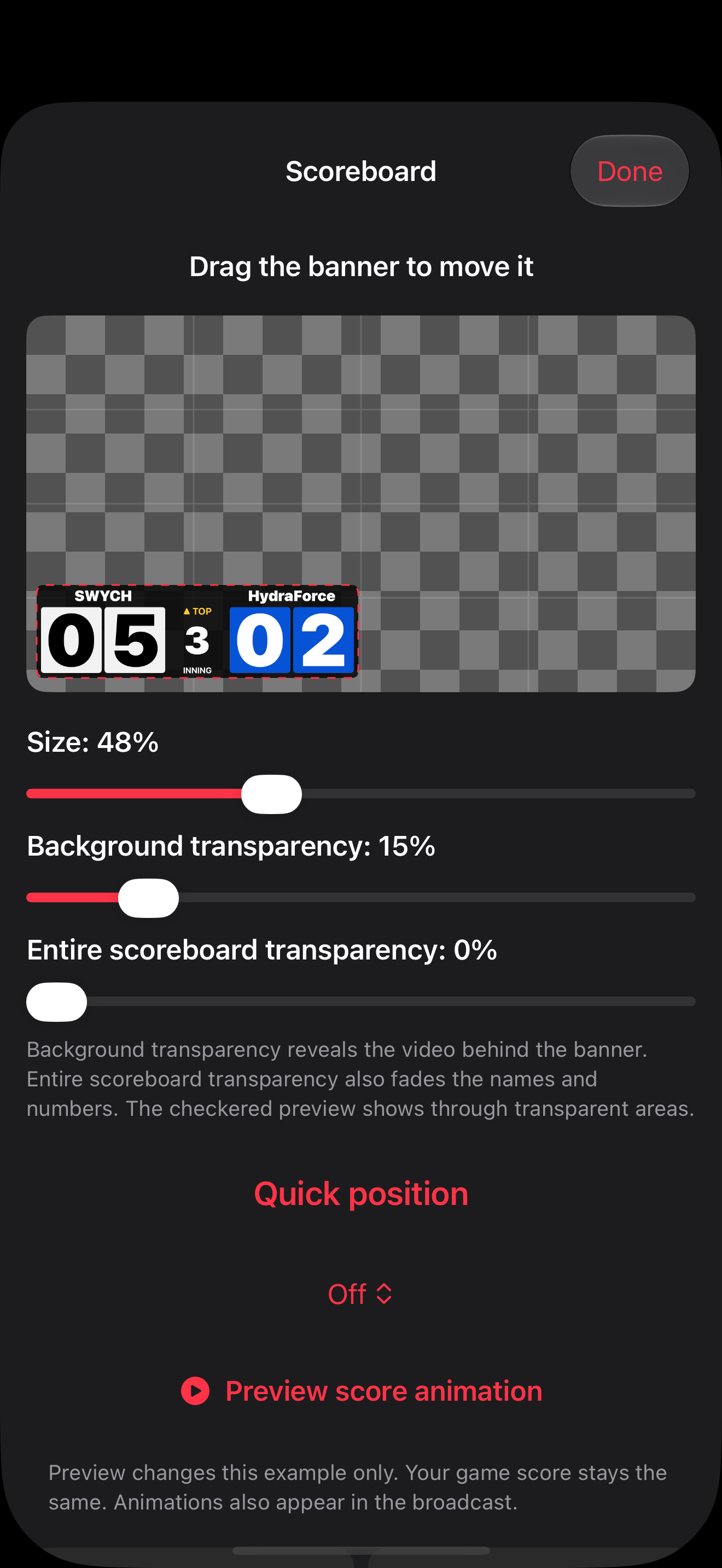
Move the banner, change its size, and adjust background or whole-banner transparency with a visible preview.
 View larger ↗
Actual scoreboard editor. The checkerboard makes transparent areas visible; the sample game is SWYCH 5–HydraForce 2.
THE FULL GAME-DAY TOOLKIT
The little details matter when you are keeping score, watching the field and trying to run a great broadcast.
While connected with preview enabled, the camera’s picture stays on the main scoring screen alongside your game controls. Keep score and adjust zoom without opening a separate preview link. Expand to full-screen landscape when you want a closer look. Images refresh periodically to keep the preview lightweight.
Use the continuous zoom slider on the camera or remote to dial in the view you need. Watch the preview as you frame the field in play, without walking back to the mounted camera. Enter an exact supported zoom value or use four custom shortcuts for quick changes.
Prepare the camera, then start or stop its YouTube livestream directly from the remote scoring screen. Keep the camera mounted while you stay with the game. Stopping requires a second confirmation to prevent accidental endings.
Create a broadcast, select a scheduled game, edit its title and description, and choose its visibility without returning to the tripod.
Choose an image and resize or reposition it before uploading. Thumbnail editing is available from the camera and remote.
Choose Normal, Low or Ultra-low latency while preparing the broadcast, with an explanation of the delay-versus-resilience tradeoff.
See microphone status and turn camera audio on or off from the camera or remote. Microphone audio starts enabled.
See the camera phone’s battery percentage and charging state on the remote. Stale or missing readings are identified.
Ready, starting, live, paused, recovering and ending states help distinguish a prepared game from a confirmed YouTube broadcast.
Leave the scoring screen for the app’s menu or settings without deliberately disconnecting the scorekeeper.
Same-account iCloud discovery makes your camera easy to select. Approval, code and QR connection paths remain available for other setups.
Paired scoring and broadcast controls use protected access. A public viewer link cannot change scores or operate the camera.
Keep it simple: two big scores, top or bottom, and the next half-inning. Ideal for a scorekeeper who does not need every pitch.
Switch on balls, strikes, outs and runners on base. Add the detail your game needs without making it mandatory.
Tap the large Watch score numbers to add a run for either team. Advance top/bottom innings and undo changes through the paired iPhone.
Large run totals and clear add/remove controls help you make a quick change and get your eyes back on the field.
Build the inning-by-inning line score as you play. Correct a previous inning’s runs and the total adjusts with it.
Correct the current inning number and top/bottom selection when a tap gets ahead of the game.
Reverse scoring and inning changes without rebuilding the game.
Switch home and visitor positions together with their score and inning history.
Start clean using a dedicated reset action, separate from swapping teams.
Press and hold a score box to choose a team from your saved Team Library.
Choose Classic compact, Wide, Flip cards, Dugout compact, Stadium, Glass, Pennant, Minimal big numbers, Bold padded numbers or Hanging cards.
Choose Flip, Pop, Spin or Slide—or turn animation off. Flip effects animate changing digits and stay within their number boxes.
Move the scoreboard across the broadcast picture from the camera or remote. Use quick positions or fine placement.
Adjust board size, overall transparency and background opacity while checking the preview.
Match the board to runs-and-innings scoring or show the optional counts and bases.
Keep team names, colors and logos in the Team Library, edit them from either phone, and reuse them across games.
Sync saved teams, broadcast profiles and finished games across your devices using the same iCloud account.
See the settings you are saving, edit or update a profile, and apply it from the camera or remote with confirmation.
Send the active scoreboard to a compatible external display through AirPlay or a wired USB-C/HDMI setup while keeping phone controls off the monitor.
Create a new stream or select a scheduled one. Review game details, choose settings, and go live when the camera is ready.
The camera interface works in portrait and landscape while filming a landscape picture. The preview preserves the whole frame.
Choose 1080p at 30 or 60 fps, 720p for field use, or 480p for a struggling connection.
Score updates and the chosen board design are composited into the camera’s broadcast and local recordings.
Leave local backup off when you want to stream without saving a large video on the camera phone.
Save a device recording alongside a livestream when you choose. The end message reports the outputs actually created.
Record up to 4K at 60 fps with HEVC, adjustable target bitrate, and device-supported stabilization on compatible hardware.
Take a photo, switch front/back cameras, and use the level indicator to help set up your shot.
The camera view stays awake during capture. Connected-preview dimming goes to 5% and a tap wakes it to 80%; settings screens stay readable.
Use an in-app touch lock to reduce accidental taps, then hold to unlock. This keeps controls locked without using the phone’s side-button lock.
Local video filenames use YEAR_MONTH_DAY_1, then _2, _3 and so on.
Check a live level meter rather than keeping a delayed YouTube stream playing in your ear.
See indications when enabled microphone input stays too quiet or reaches clipping levels.
See which microphone is active, so you can check that your external setup is being used.
Select the internal mic or an external input when iOS and the connected hardware expose those choices. Control it from either phone.
Adjust input gain from the camera or remote when the selected microphone supports it.
If the selected external microphone disconnects, a warning identifies the interruption. The app attempts to return to the built-in microphone and reports whether recovery is confirmed.
The remote shows a compact heat indicator for routine overheating concern, with prominent guidance for critical conditions.
Get low and critical camera-battery guidance before a depleted phone becomes a surprise.
See actionable advice when sending video stays weak or reconnecting, including which quality preset to use for the next broadcast.
The streaming path adjusts bitrate and attempts reconnection as conditions change. Network and device limits still apply.
The remote can report when camera video pauses after the camera app leaves the screen. Configured same-iCloud devices can receive lock-screen alerts.
Returning the camera app to the foreground can rebuild capture and resume the same armed stream when permissions, network and YouTube state allow.
Confirming End stops transmission, requests YouTube completion, and clears automatic-resume intent.
If YouTube has not confirmed the end, the app shows the pending state and an explicit retry path.
Review final totals and runs by inning from the camera or remote, with saved records available later.
The end screen brings together the final result, available replay link, actual local-file outcome and a Share action.
Share a viewer link that updates the score without giving spectators scoring or broadcast control. Revoke access when needed.
Our SSSA beta page brings together published live games, upcoming games, results and available embedded YouTube replays. Broader customer-page rollout is being prepared.
Eligible games are opt-in. Owner controls show or hide listings; a hidden test does not reappear just because the camera sends an update.
Private YouTube broadcasts are excluded from the public watch page. Public and unlisted listings require an explicit publishing choice.
A livestream-only game never claims a local video was saved. Replay sharing depends on confirmed completion and YouTube availability.
Export a report with relevant app/device diagnostics, review it, and share it with support when you choose.
AFTER THE LAST PLAY.
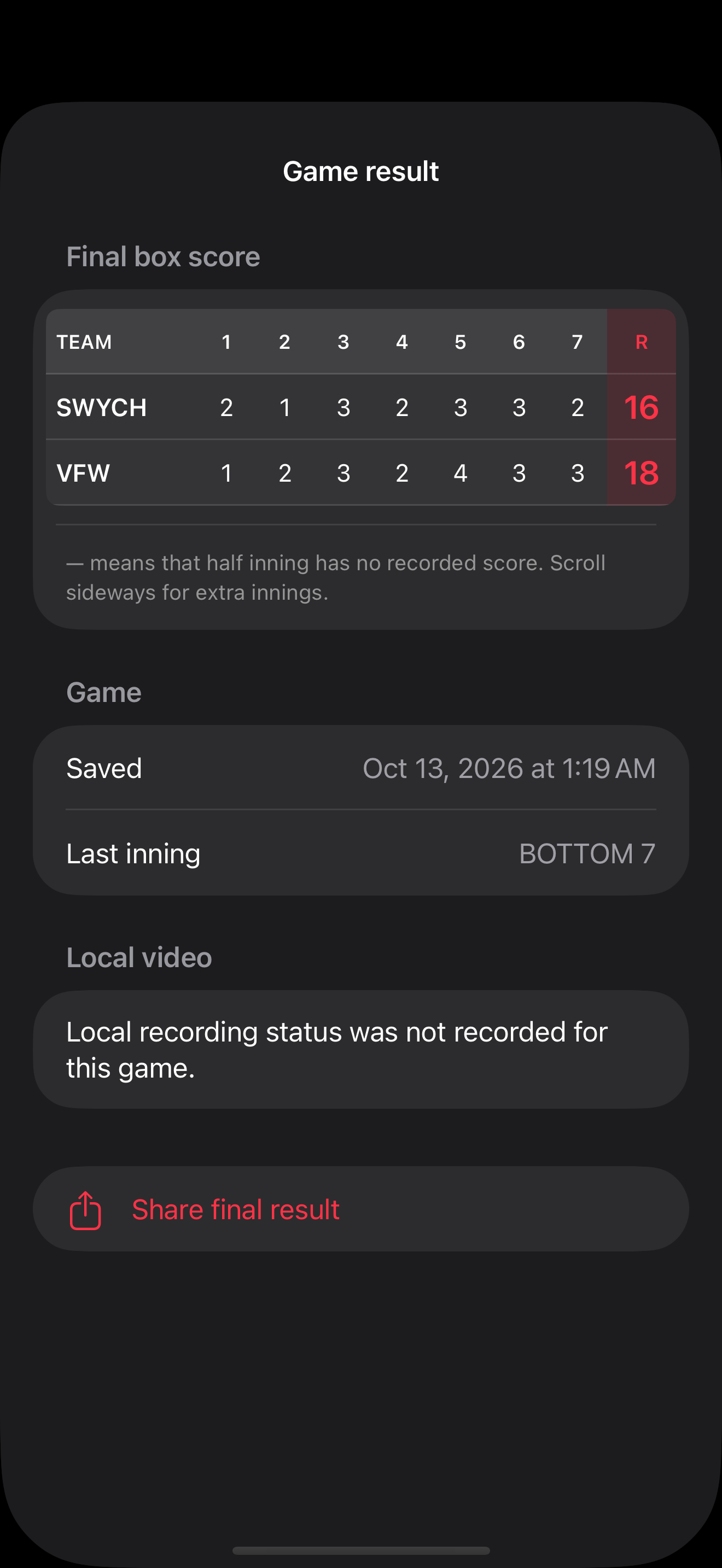
Review the final box score and share the result from either phone. Saved records make it easy to come back later.
 View larger ↗
Actual finished-game screen with sample data. This example has no recorded local-file outcome; the app shows the status it actually knows.
FIND THE WORKFLOW THAT FITS YOUR TEAM
Score Monkey emphasizes simple softball scoring and control of the mounted camera. Here is a focused comparison with other sports-video and scorekeeping tools.
Documented feature Not documented in sources reviewedA red × means we could not confirm the feature in public documentation; it does not mean the feature is unavailable. Competitor plan and hardware requirements may apply. Score Monkey is currently a beta.
| Feature | STREAM IT. SCORE IT.Built for your game day | ScoreCam | ScoreFrame | sidelineHD | GameChanger |
|---|---|---|---|---|---|
| Apple Watch runs & innings control | Documented featurePaired iPhone | Not documented | Not documented | Not documented | Not documented |
| Direct YouTube streaming | Documented feature | Documented feature | Documented feature | Documented feature | GameChanger platform |
| Remote scoring from another device | Documented feature | Documented feature | Documented feature | Documented feature | Documented feature |
| Remote camera image preview | Documented featureBuilt into scoring screen | Documented feature | Not documented | Not documented | Not documented |
| Preview integrated into main scoring layout | Documented featurePreview, scores & zoom together | Preview documented; placement unconfirmed | Not documented | Not documented | Not documented |
| Select internal or external microphone | Documented feature | Not documented | Not documented | Not documented | Not documented |
| Audio level meter & supported gain control on remote | Documented feature | Not documented | Not documented | Not documented | Not documented |
| External microphone disconnect warning | Documented feature | Not documented | Not documented | Not documented | Not documented |
| Automatic built-in mic fallback after disconnect | Documented feature | Not documented | Not documented | Not documented | Not documented |
| Camera heat warning on remote | Documented feature | Documented feature | Not documented | Not documented | Not documented |
| Camera battery percentage on remote | Documented feature | Not documented | Not documented | Not documented | Not documented |
| Camera leaves screen: video-pause & lock-screen alerts | Documented featureSame-iCloud setup | Not documented | Not documented | Not documented | Not documented |
| Create, edit, start & stop YouTube from remote | Documented feature | Not documented | Not documented | Not documented | Not documented |
| Scoreboard-only external monitor output | Documented featureAirPlay / HDMI | Documented featureAirPlay / HDMI | Not documented | Not documented | Not documented |
| Up to 4K60 local recording | Documented featureCompatible hardware | Documented featureDevice dependent | Documented featurePro | Not documented | Not documented |
| Public team/game viewing pages | Documented feature | YouTube links | Documented feature | Documented feature | GameChanger web/app |
ScoreCam documents a microphone-volume slider on the camera; the remote meter, input-selection and fallback combinations above were not confirmed in the reviewed sources. This is a feature-documentation comparison, not a hands-on benchmark or a claim of market exclusivity. Other apps offer additional capabilities, including player analytics, highlights and broader sport support. Review their current plans and documentation before choosing.
A FEW GOOD GAME-DAY QUESTIONS
Yes. Pair the Watch with the camera iPhone, keep the camera app open, and use the Watch to score. A second remote phone is optional for that setup.
While connected with preview enabled, it stays visible on the main scoring screen; you do not have to open a separate preview link. It uses periodically refreshed, lightweight camera images. It lets you check the shot and scoreboard without adding a second full-resolution broadcast. Expanding it does not turn it into a high-frame-rate video feed.
No. Livestream-only mode leaves local backup off. YouTube controls the availability of its own replay; an optional local recording is a separate output.
The up-to-4K60 option is for local HEVC recording on compatible devices. The current YouTube streaming presets range from 480p to 1080p at supported frame rates.
The SSSA watch page is our working beta showcase. Watch pages for additional teams and leagues are being prepared for a broader rollout.
Score Monkey Live is in a limited TestFlight beta. Contact support to ask about testing. Public App Store availability and pricing have not been announced.

LET’S MAKE GAME DAY BETTER.
Simple scoring. More control. A broadcast your team can share.